How to Make a Certificate in Word (and a Faster Way)
Microsoft Word has been the default office tool for certificates for decades. Here is how to format borders and text boxes correctly—plus a faster browser alternative.
Suraj FT
Lead Certificate Designer & Publishing Specialist
For over thirty years, Microsoft Word has been the default tool for creating workplace memos, academic syllabi, and office awards. Almost every office computer has Word installed, and when an executive demands an award certificate before a 4 PM all-hands meeting, firing up a blank Word document is often the first instinct.
Yet anyone who has tried to design an elegant certificate in Microsoft Word knows the frustration: borders that disappear off the edge of the printed page, text boxes that randomly leap onto page two when you adjust font size, and fuzzy company logos. Below, we walk through the exact steps to format a clean certificate in Word, solve its most notorious printing errors, and show you a faster way using Free Printable Certificate Templates directly in your browser.
Why We Still Turn to Microsoft Word
Word has genuine strengths: built-in spellcheck, offline functionality, and familiar keyboard shortcuts. Unlike Google Docs, Word also includes a dedicated Page Borders dialog box with customizable line styles and multi-line borders. However, Word was fundamentally constructed as a word processor for flowing text across paragraphs, not as a precision graphic layout program.
Step-by-Step Tutorial: Formatting a Certificate in Word
Here is the recommended configuration in Microsoft 365 or Word 2019/2021:
Step 1: Set Landscape Orientation & Margins
- Open a blank document. Navigate to the Layout tab in the ribbon.
- Click Orientation and select Landscape.
- Click Margins > Custom Margins. Set all margins (Top, Bottom, Left, Right) to 0.5 inches.
- Under Paper, confirm your paper size matches your printer stock (Letter 8.5 x 11 in or A4 210 x 297 mm).
Step 2: Add Page Borders
- Navigate to the Design tab (or Page Layout in older versions) and click Page Borders on the far right.
- In the dialog, under Setting, select Box.
- Under Style, choose a classic solid double-line or thick-thin triple border.
- Set the Color to Navy Blue or Charcoal and the Width to 3 pt or 4.5 pt. (Avoid novelty clip-art borders like apples or stars, which look dated).
- Click the Options... button in the bottom right of the dialog. This is the crucial step explained below.
Step 3: Use Borderless Text Boxes Instead of Plain Paragraphs
If you type directly on the page, Word's paragraph spacing rules will fight your layout. Instead, use floating text boxes:
- Click Insert > Text Box > Simple Text Box.
- Click Shape Format, set Shape Fill to No Fill and Shape Outline to No Outline.
- Set text alignment to Center.
- Type your certificate fields in sequence: Header (28–36 pt), Presentation line (14 pt italic), Recipient Name (36–42 pt), Citation paragraph (12 pt), and Date.
Step 4: Insert Signature Lines
- Click Insert > Shapes > Line. Hold the Shift key while dragging to ensure the line stays perfectly horizontal.
- Set the line color to dark grey or navy, and set the weight to 1 pt.
- Insert a small text box below each line containing the signer's name and official corporate title.
How to Fix the 'Margins Outside Printable Area' Error
The most notorious problem in Microsoft Word is sending a certificate to the office printer, only to see the bottom border cut off completely. Word will often display a popup warning: "The margins of section 1 are set outside the printable area of the page."
In the Page Borders dialog, click Options.... Look at the dropdown menu labeled Measure from:. By default, Word sets this to Edge of page. Change this setting to Text. This forces Word to anchor the border relative to your content margins rather than the printer's mechanical roller boundaries, preventing the bottom line from being clipped.
4 Reasons Why Word Makes Certificate Design Hard
- Font Substitution Chaos: If you use a beautiful font like Cinzel or Playfair Display on your laptop and send the
.docxfile to a colleague to print, Word will silently substitute it with Times New Roman or Calibri unless fonts were manually embedded. - Accidental Page Spills: Increasing font size by 2 points can trigger an invisible page break, leaving you with an unwanted second page and a misaligned border.
- Automatic Image Downsampling: By default, Microsoft Word compresses inserted high-resolution logos, foil badges, and organization crests to 150 or 220 PPI to save file space. When printed on laser cardstock, crests and signatures often look noticeably soft or pixelated.
- Cumbersome Mail Merge Setup: While Word does support mail merge with Excel spreadsheets for bulk recipient names, configuring coordinate-locked fields inside floating text boxes requires complex field code manipulation that frequently breaks line wraps.
Feature Comparison: Microsoft Word vs. Certificate Maker AI
| Design Capability | Microsoft Word | Certificate Maker AI |
|---|---|---|
| Border Styling | Basic line styles or dated clip-art | Precision vector geometric & luxury frames |
| Print Clipping Risk | High (requires manual margin overrides) | Zero (calibrated 0.75" safe zones) |
| Font Consistency | Depends on installed local fonts | 100% web-standard embedded typography |
| Export Speed | Several menu steps | One-click instant PDF or high-res PNG |
The Faster Alternative: Designing in the Browser
Instead of fighting Word's text box anchors, you can use modern browser-native templates designed specifically for executive presentation:
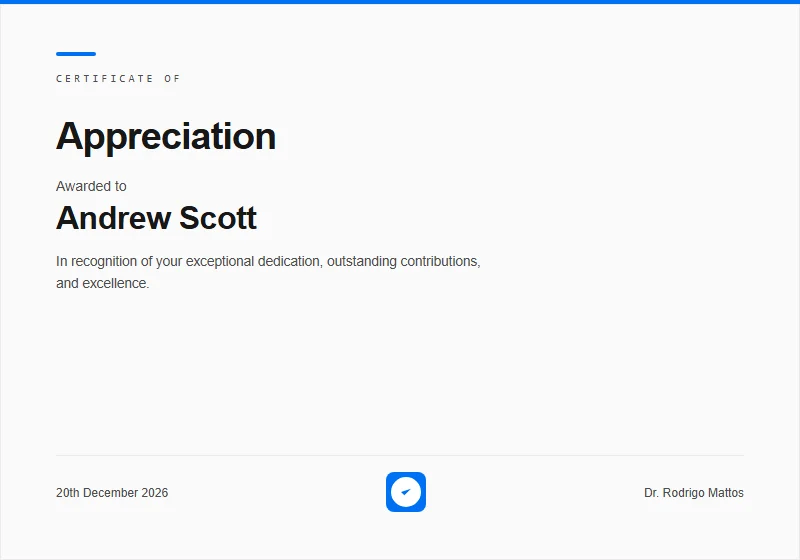
- For corporate seminars and quarterly performance recognitions, explore the Corporate Modern template.
- For distinguished leadership awards with rich architectural lines, choose the Navy & Gold Geometric template.
Browse our complete collection of Free Printable Certificate Templates, edit names and citations with live preview, and download print-ready 300 DPI vector PDFs in seconds.
Free Printable Certificate Templates
Access high-resolution printable certificate templates engineered for flawless paper output. Customize fields, adjust typography, and download in vector print quality.
Recommended Templates for This Guide
Both templates are available for instant editing with zero watermarks or signup gates.
Corporate StandardCorporate Modern
Structured corporate lines with sophisticated slate and navy accents, built for high-level business awards.
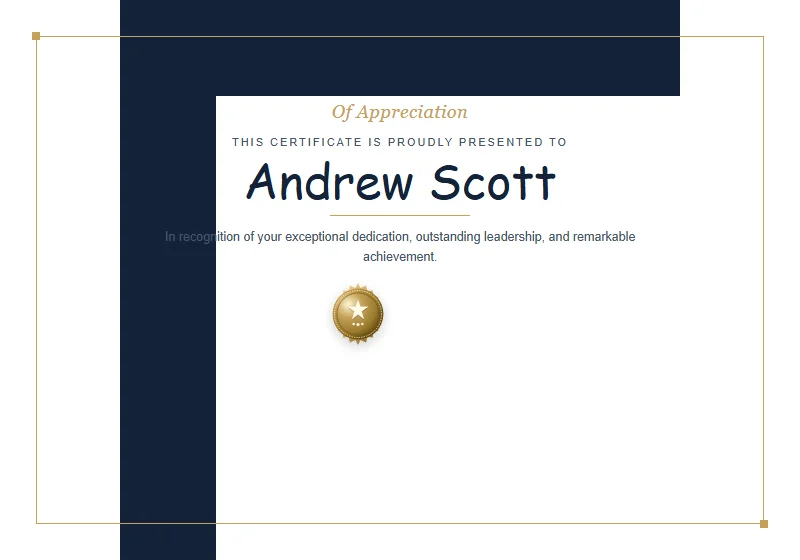 Geometric Executive
Navy & Gold Geometric
Architectural geometric corners and warm metallic accents for standout executive achievement certificates.
Suraj FT
Lead Certificate Designer & Publishing Specialist
Suraj FT is a digital publishing specialist and print designer with over a decade of experience designing formal credentials, corporate awards, and document typography.
Related Certificate Guides
Certificate of Appreciation Wording: 40 Examples
Stuck on what to write on a certificate of appreciation? Here are 40 field-tested wording examples organized by role, plus the anatomical breakdown of an unforgettable citation.
Certificate of Completion Wording Examples for Courses and Workshops
Writing a certificate of completion requires balancing academic authority with crisp design. Here are real wording samples for bootcamps, workshops, and continuing education.
What to Write on a Participation Certificate (With Samples)
Participation certificates shouldn't feel like empty consolation prizes. Here is how to write thoughtful citations that celebrate grit, presence, and genuine contribution.